Project documents: How do keep.eu’s programme editors edit project documents?
Keep.eu offers a feature through which programme editors can autonomously add or associate documentation to projects financed by their programmes, either by uploading it directly to the platform or by linking or referencing it. This page is a guide for these users.
Register and login
To access these features, users must first be registered in keep.eu. To register, users can access the Register section through the main menu on the top right of the keep.eu website. The link to this section is https://keep.eu/register/.

After registering, users must request from the keep.eu administrators the role of programme editor for their programme. After logging in, programme editors will be able to access the new features through the ‘Kamut’ item in the main menu.

Important foreword
When preparing the importing of files, programme editors need to take the following into account:
- Selection of files: Perform a thorough culling of the documents to import based on how much they will help users. Be mindful that your project will be more visible when only meaningful documents are featured in keep.eu.
- Correct file naming: Name the files in a way that helps users select the ones that are useful to their needs. Whenever possible, use the name of the document as the file name. For example, instead of naming a file ‘File1.pdf’, name it ‘Report on Suggested Investment Measures’.
Project document editing
After logging in and accessing Kamut, users can access the ‘Project documents’ section.

If users are programme editors for more than one programme, they will have to select the one they want to work on.

After the selection, the list of projects belonging to the programme in keep.eu will appear.
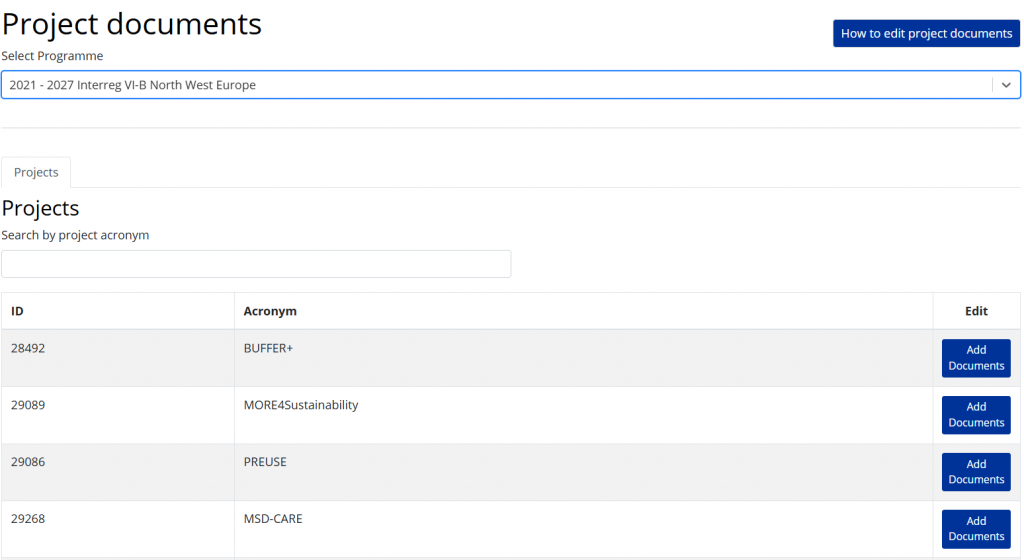
Using the ‘Add documents’ button, users can access the document management section of a project.
In this section, all project-related documents are displayed, and users can delete, edit, or add documents.
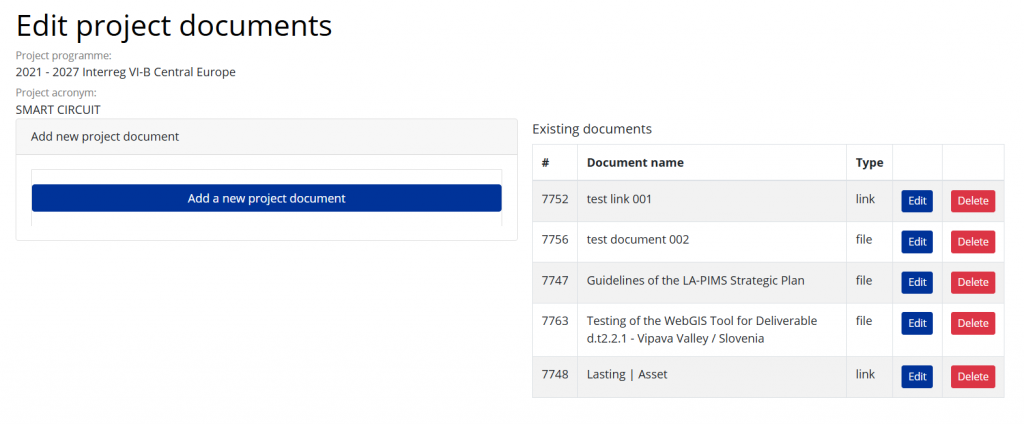
The following figure shows the editing interface of a project document.
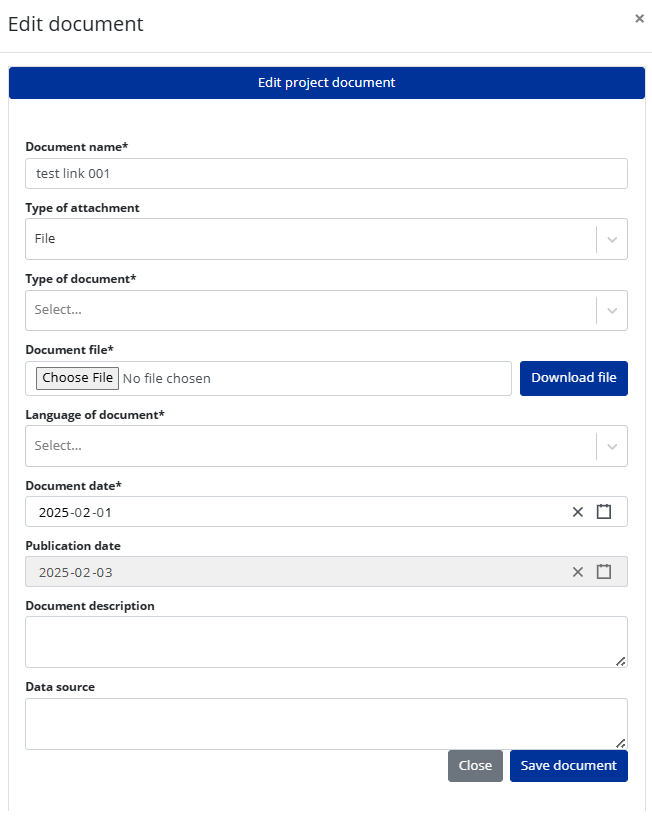
There are two types of documents: Files or links.
This feature can be selected through the ‘Type of attachment’ field.
If users select the ‘File’ type, a mandatory file-upload field will appear.
If users select the ‘Link’ type, a mandatory field will appear that must contain a URL.
The following fields are also required for both types of documents:
- ‘Type of document’: Select one of the following values:
- ‘Book’
- ‘Brochure / magazine / manual’
- ‘Flyer’
- ‘Media release / article’
- ‘Report’
- ‘Project’s final report’
- ‘Study / survey’
- ‘Presentation’
- ‘Inventory’
- ‘Database’
- ‘Map’
- ‘Catalogue’
- ‘Video / film’
- ‘Audio material / podcast’
- ‘Website / webtool / webforum / cooperative platform’
- ‘Other’
- ‘Language of document’: Select the language of the document
- ‘Document date’: Issue date of the document
Moreover, the form includes two non-mandatory fields: ‘Document description’ and ‘Data source’.
If the user clicks the Delete button, a confirmation dialogue box appears to prevent unwanted deletions.